
Wifi Manager
alatheertech.comTools
4.421.00 Reviews
- Version
- 1.0.6
- Installs
- 100.00K
- Age Rating
- Everyone
Screenshots
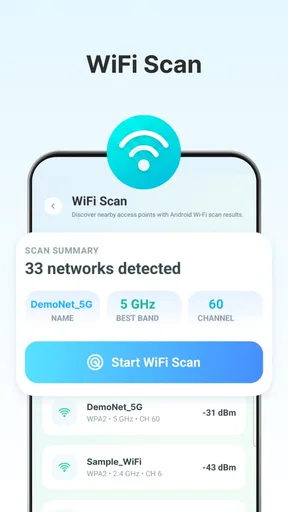
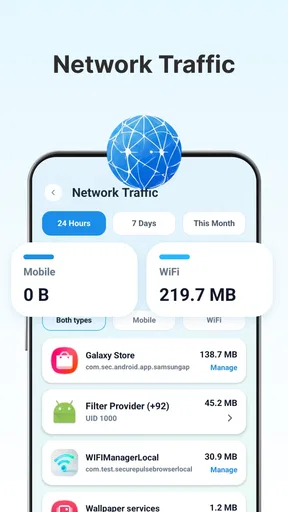
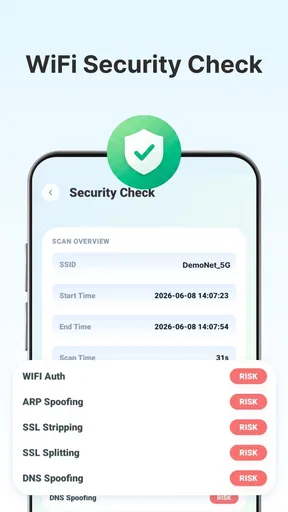
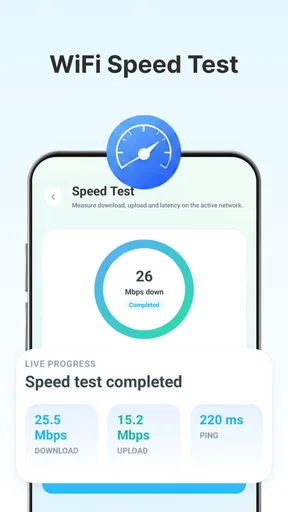
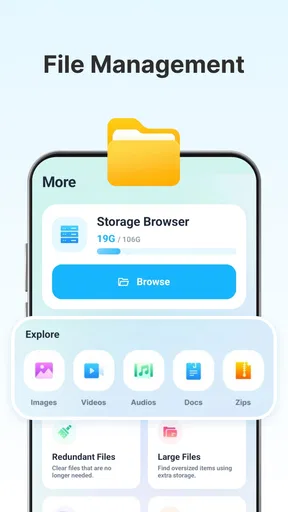
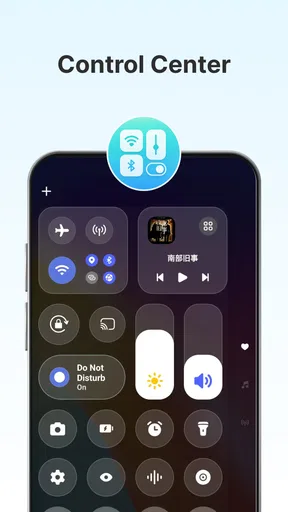
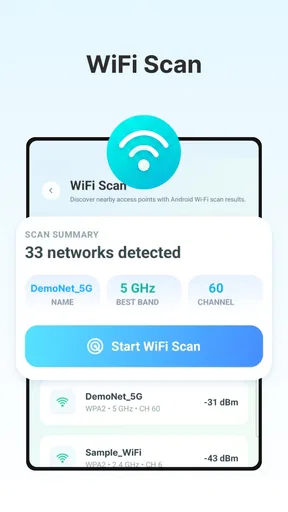
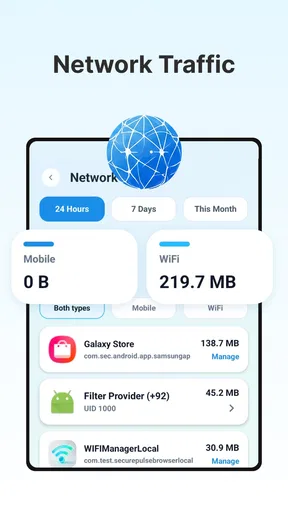
Our Review of Wifi Manager
 Analysis by Appyee
When a WiFi connection starts behaving strangely, I usually want two things quickly: a clear view of what is happening and a practical way to tidy the files that have collected on my phone. Wifi Manager is built around that combination. It is a free Tools app from alatheertech.com that brings network analysis and file organization into one place, rather than asking me to jump between a router utility, a system settings screen, and a separate file browser.
That combination makes it more interesting than a simple shortcut to wireless settings. In everyday use, I found its value depends less on constantly watching the network and more on building a repeatable routine: check the connection when something feels wrong, inspect the available information before changing settings, and use the file side of the app during the same maintenance session. It is aimed at people who want more control than the standard Android WiFi page gives them, but who do not necessarily need a specialist networking toolkit.
The app currently carries a 4.4 average from around 2.6 thousand ratings, with more than 100 thousand installs. It is marked for Everyone, costs nothing to download, and version 1.0.6 supports Android 7.0 and later. Those details make it accessible to a broad range of phones, including older devices that may not run newer network utilities. Still, broad compatibility should not be confused with professional-grade diagnostics, and that distinction matters throughout this review.
How I use it for a reliable baseline check
My first habit with a network tool is to establish a baseline before trying to fix anything. I open the WiFi section, look at the connection that is currently active, and note the basic state before moving around the room or restarting equipment. This prevents a common mistake: blaming the phone when the problem is really a weak signal, a crowded location, or a router that needs attention.
Wifi Manager is most useful here as a central inspection point. Instead of opening Android settings, searching through saved networks, and then switching to a file app for unrelated cleanup, I can begin in one utility. That saves time during small troubleshooting jobs, especially when I am helping someone who is not comfortable navigating system menus.
A realistic example is a video call that becomes unreliable in one part of an apartment. I would check the current WiFi information near the router, then repeat the check from the desk where the call usually takes place. The important insight is not to treat one reading as a final verdict. A connection can look healthy beside the router and still become inconvenient through walls or at a busy time of day. Repeating the same check in the same locations creates a more useful comparison than staring at a single result.
I also like separating connection symptoms from internet symptoms. If other devices are slow as well, the router or internet service is a stronger suspect. If only one phone struggles, the device, its position, or its current network state deserves closer attention. The app can help me inspect the WiFi side, but it does not replace sensible testing with another device. That is an important limit for anyone expecting one screen to identify every cause.
The file organization side fits naturally after this first check. Network troubleshooting often produces screenshots, downloaded documents, and temporary files. Rather than leaving those scattered across the phone, I can organize them while the issue is still fresh. I find this more useful than it sounds: keeping a screenshot of a network state beside notes about where it was taken can make a later comparison much easier.
What I check before changing anything
I avoid making several changes at once. If I restart the router, forget the network, alter a phone setting, and move to another room together, I lose the ability to tell which action helped. My preferred workflow is simple: inspect, record the situation mentally or with a screenshot, make one change, and check again.
This approach also reduces unnecessary disruption. Forgetting a network can mean re-entering a password, and changing router settings can affect everyone at home. Wifi Manager is better used as an observation and organization tool than as an excuse to experiment randomly. Its strongest contribution is helping me keep the process orderly.
For a family member, I would use the app to show the current network status, explain whether the phone is connected to the expected WiFi, and then guide them through one small action. The interface is more approachable for that purpose than a specialist analyzer filled with technical graphs. On the other hand, a network administrator who needs packet inspection, detailed channel planning, or a complete inventory of connected equipment should choose a dedicated professional utility instead.
Settings and habits worth checking
The first setting-related habit I recommend is checking Android compatibility before installing. The app supports Android 7.0 and later, which covers many devices but not every older phone. On a compatible phone, I would also keep the system’s own WiFi controls familiar. Wifi Manager complements those controls; it should not become the only place I expect to manage every wireless behavior.
I pay attention to what the app is showing versus what Android itself controls. A third-party utility can present network information and organize files, but some actions still depend on the operating system’s permissions and restrictions. If a task sends me to a system screen, I do not interpret that as a failure. It is often Android deliberately keeping sensitive network or storage operations under its own control.
File organization deserves its own careful routine. I start with low-risk material such as duplicate screenshots, old downloads, and files I can identify immediately. I do not delete an unfamiliar document just because its name looks untidy. A useful rule is to sort first, review second, and remove only after I know what the file is for. This is especially important when a file may be an attachment, an offline document, or something another app still needs.
The best setting is often a repeatable habit rather than an aggressive change. I use the network view at the same locations and the file tools at the same points in my weekly routine. That makes changes easier to notice and avoids turning ordinary maintenance into a long troubleshooting session.
Another practical habit is keeping network-related screenshots in a clearly named folder instead of allowing them to mix with personal photos. If I am diagnosing a recurring issue, I can compare those images later. If the problem disappears, I can safely remove the evidence during the next cleanup. This turns the app’s two functions into a connected workflow rather than two unrelated tools placed side by side.
Faster patterns for everyday maintenance
Once I have used the app a few times, I stop opening it only when something has already gone wrong. A short maintenance session is faster: check the current WiFi state, organize recent network screenshots, review downloads, and leave. I would not do this constantly, but it is useful after travel, after changing a router, or after spending several days on public networks.
Travel is a good example. I may collect boarding documents, hotel confirmations, screenshots, and temporary downloads while moving between networks. When I return home, the file organization tools give me a single place to separate what needs keeping from what was only useful for the trip. At the same time, checking the home connection helps me confirm that the phone has returned to the intended network instead of quietly relying on mobile data.
For people who regularly help relatives, the faster pattern is even more valuable. I can ask them to open one app, show the network information, and gather screenshots without making them search through several menus. This does not solve every issue remotely, but it improves the quality of the conversation. “The connection is bad” becomes a more specific discussion about where the phone is, which network it sees, and whether other devices have the same problem.
I also recommend using the app before calling an internet provider, but not as a substitute for the provider’s own support process. If the phone connects normally while other devices fail, the evidence points in one direction. If every device has trouble, the same check helps me avoid spending time changing phone settings that are unlikely to help. The app supports better questions; it does not magically repair an external service.
There is a trade-off in this convenience. Combining network analysis and file organization means the app can become a general maintenance destination, but users who only need a one-time WiFi password view may find it broader than necessary. Android’s built-in settings are usually quicker for a single basic action. I reach for Wifi Manager when I want inspection plus organization, not when I merely need to toggle WiFi.
Where the app is helpful, and where its limits appear
My main limitation is that I would not treat a general WiFi manager as a complete diagnostic laboratory. Network performance depends on the router, the internet connection, interference, distance, walls, device hardware, and the behavior of the service I am using. A utility can make the phone’s network state easier to understand, but it cannot turn a weak broadband line into a strong one.
I would also be cautious about assuming that analysis automatically means detailed technical measurement. The store summary presents network analysis and file organization, but the practical value for me is the accessible overview and workflow, not a promise of specialist-level testing. If I need advanced wireless planning, I would use a purpose-built analyzer designed around that single job.
Another limit is user discipline. File tools are only safe when I review what I am handling. A tidy folder is not automatically a better phone if important documents are removed in the process. I prefer gradual cleanup, especially on a shared or older device where files may have been saved by apps in locations I do not immediately recognize.
Privacy-conscious users should make their own comfort judgment before using any utility that can inspect network or storage information. I do not grant access casually, and I review the Android prompts rather than tapping through them. The app’s Everyone age classification makes it suitable for a broad audience, but age suitability is not the same as permission awareness. Parents and less technical users may still benefit from a quick explanation of what each requested access enables.
The version number also matters when judging expectations. Version 1.0.6 suggests a relatively early product stage, so I approach it as a focused utility that may continue to evolve rather than as a mature replacement for every networking and file-management app. That is not a criticism by itself. It simply means I value straightforward workflows and avoid depending on it for a mission-critical technical diagnosis.
Who should install it and who should choose something else
I think Wifi Manager is a good fit for Android users who want one free place to inspect WiFi information and keep everyday files under control. It suits students, families, travelers, and anyone who periodically troubleshoots a connection without wanting a complicated professional interface. The broad Android compatibility is another practical advantage for households with a mixture of newer and older phones.
It is especially useful when the same person handles both tasks: checking why a connection feels unreliable and cleaning up the screenshots or downloads created during that process. That pairing is the app’s clearest identity. I would recommend it to a friend who often says, “I need to check the WiFi, and while I am here, I should clean up these files.”
I would skip it if I only need the basic WiFi switch, a saved password, or a quick connection toggle. The operating system already handles those simple jobs. I would also choose a dedicated file manager if my priority is deep folder control, cloud integration, or highly specialized storage workflows. Likewise, network professionals should look elsewhere for detailed surveying and advanced diagnostics.
The app makes the most sense in the middle: more organized than built-in settings, less demanding than specialist tools. That middle ground is valuable because many phone owners do not need a wall of technical information. They need enough context to make a sensible next step, plus a convenient way to clean up the evidence and clutter left behind.
My final routine and recommendation
After using it, my preferred routine is deliberately modest. I open the app when a WiFi problem appears, inspect the connection before changing anything, compare the situation from more than one location when relevant, and make only one adjustment at a time. Then I use the file side to sort screenshots and downloads while I still remember why they were created.
That workflow gives the app a practical role beyond its short description. It helps me turn vague complaints into a sequence of checks, and it links temporary troubleshooting material with ordinary phone maintenance. The strongest results come from consistency: the same locations, the same order of checks, and careful file review rather than hurried deletion.
My recommendation is positive for everyday Android maintenance, with realistic expectations. Wifi Manager is free, accessible to Everyone, and developed by alatheertech.com, while its 4.4 average and more than 100 thousand installs suggest that many users find the general approach worthwhile. I would install it for approachable WiFi inspection and file organization, but I would keep Android settings and specialist tools available for the jobs they handle better.
In short, this is not the app I would choose to run an enterprise network investigation. It is the app I would choose when I want a practical household workflow: understand the connection, avoid random fixes, organize the files created along the way, and move on with a cleaner phone and a clearer idea of what needs attention.
Verdict
Strengths of Wifi Manager
- Quickly shows nearby Wi‑Fi networks and their signal strength.
- Helps identify crowded channels for better router placement and setup.
- Useful connection details are presented in an easy-to-read interface.
- Can simplify switching between saved wireless networks.
- Lightweight design should run smoothly on most Android devices.
Limitations of Wifi Manager
- Some advanced tools may require location access to scan networks.
- Accuracy can vary depending on the phone’s Wi‑Fi hardware.
- Certain features may be limited by newer Android security restrictions.
- The interface may feel dated compared with newer network utilities.
- It cannot improve a weak connection without changes to the router or network.
Similar Picks in This Category
View All
Google LLC4.0

Gboard - the Google Keyboard
Google LLC4.5

Google Play services
Google LLC4.3

Google Play Store
Google LLC4.9

Files by Google
Google LLC4.5

SHAREit: Transfer, Share Files
Smart Media4U Technology Pte.Ltd.4.3
Frequently Asked Questions
What is WiFi Manager and what can I use it for?
WiFi Manager is an app designed to help you view, manage, and connect to nearby wireless networks from your Android device. Depending on the version and device compatibility, it may display network names, signal strength, connection details, and saved Wi-Fi networks. It can be useful for troubleshooting weak connections, quickly checking available networks, and accessing wireless settings without navigating through several system menus.
Does WiFi Manager reveal Wi-Fi passwords or provide free internet access?
No, WiFi Manager should not be considered a tool for bypassing Wi-Fi security or obtaining passwords without permission. It can generally show networks that your device can detect and may help you manage networks you are authorized to use, but it cannot legitimately unlock protected connections. You still need the correct password or permission from the network owner, and availability of specific features may depend on your Android version and device settings.
Is WiFi Manager safe to install and use?
The app can be safe when downloaded from a trusted source and when its requested permissions match its functions. Wi-Fi management apps may request access to nearby devices, location, or network information because Android uses these permissions to scan wireless networks. Before installing, review the developer information, privacy policy, ratings, and recent user feedback. Avoid unofficial modified versions, and disable permissions that are not necessary for the features you intend to use.
Does WiFi Manager work on every Android phone?
Compatibility is not identical across all Android phones. Basic features may work on many devices, but network scanning, signal information, automatic connection options, and saved-network management can be restricted by the Android version, manufacturer interface, or permission settings. On newer versions of Android, location or nearby-device permissions may be required for scanning. It is best to check the app’s store listing and test its features on your specific device before relying on it.
Can WiFi Manager improve my internet speed or Wi-Fi signal?
WiFi Manager cannot physically increase your internet plan speed or strengthen a router’s wireless signal. However, it may help you identify connection problems by showing nearby networks, signal levels, or network details. This information can help you choose a less crowded network, move closer to the router, restart a connection, or adjust router settings. Actual performance still depends on your internet provider, router, distance, interference, and the quality of your device’s Wi-Fi hardware.
